Most small businesses connect too many tools too soon. Then a form sends duplicate leads, an invoice fails to sync, and nobody trusts the CRM. This guide shows which CRM integrations to connect first, what each one fixes, and how to test a connection before you rely on it. It is part of our AI marketing automation guide.
The short answer
Connect in this order: first your lead sources (website form, calls, chat), then email and calendar, then texting, then accounting and invoices. Add review requests, reporting and everything else later. Connect one tool at a time and test it with one record before you move on.
In this guide
- What CRM integrations are, and the three ways to connect
- What to connect first: a ranked order
- One-way or two-way sync: pick a boss
- When a connector service makes sense
- How to test a new connection
- What the time savings can look like (hypothetical)
- Common mistakes
- Frequently asked questions
- Next steps
What CRM integrations are, and the three ways to connect
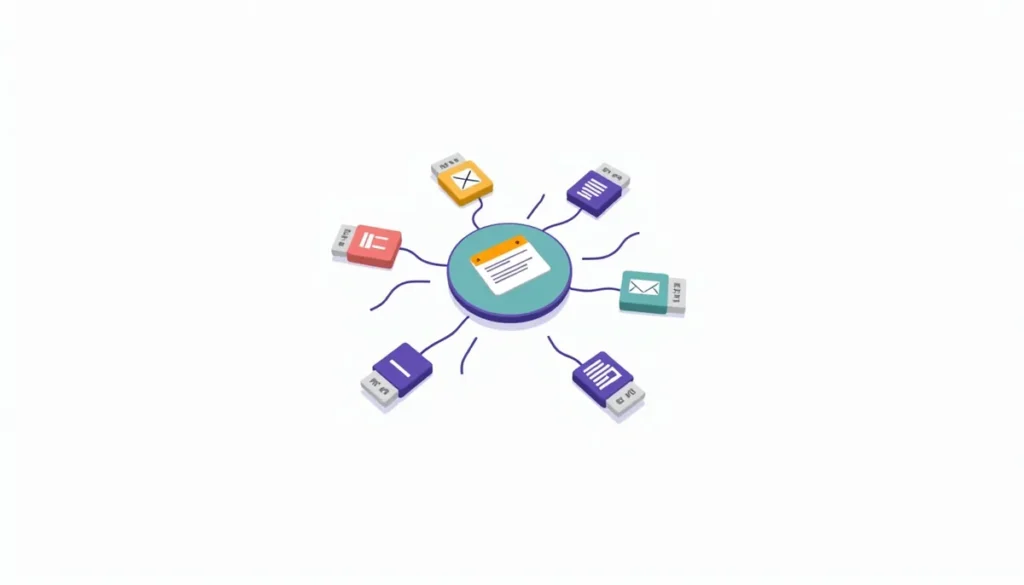
A CRM integration is a link between your CRM and another tool so data moves without retyping. A lead fills in a form, and a contact appears in your CRM. You send an invoice, and the CRM shows it on the customer record.
There are three ways to build that link.
| Method | What it is | Good for | Watch for |
|---|---|---|---|
| Built-in (native) | The CRM and the other tool already support each other | Email, calendar, accounting, popular forms | Plan limits, and only the fields the vendor chose |
| Connector service | A middle tool, such as Zapier, moves data between apps | Tools with no built-in link | Usage limits and a second bill |
| Custom (API or webhook) | A developer writes the link | Unusual needs or your own website | Cost to build and to maintain |
Start with built-in links. Use a connector when there is no built-in option. Pay for custom work only when the first two cannot do the job. Our guide to what CRM automation costs explains how those choices change the price.

What to connect first: a ranked order
This order follows the question “which missing link costs me the most today?” Your list may shift a little, but most small businesses end up close to this.
| Order | Connect | What it fixes | Effort | Watch for |
|---|---|---|---|---|
| 1 | Website forms, calls and chat to the CRM | Leads that never get entered or answered | Low to medium | Duplicates, missing source field |
| 2 | Email and calendar | Retyping emails, missed follow-ups, double booking | Low | Permissions, shared inboxes |
| 3 | Texting and phone | Slow replies, no record of calls | Medium | Opt-out handling |
| 4 | Accounting and invoices | Entering the same customer twice, unpaid invoices nobody sees | Medium | Sync direction, edit rules |
| 5 | Review requests and reporting | No steady stream of reviews, no clear numbers | Low | Sending to the wrong people |
| 6 | Documents, e-sign, project tools | Paperwork lost in email | Medium | Too many tools too soon |
1. Website forms, calls and chat
A lead you never see is the most expensive gap. Connect every place a lead can start. That includes your contact form, quote form, call tracking, and chat.
Set these fields on every lead: name, phone, email, what they want, and where they came from. The source field lets you see later which channel brings real jobs. Send yourself an alert, and send the lead an instant reply. Our guide to AI lead follow-up shows what to send.
Run a test with your own details, and then run it again with the same email address. If you get two contacts, fix that first. The second test shows how the connection handles duplicates.
2. Email and calendar
This is usually the easiest win. Connecting your inbox lets the CRM keep the email history on each contact. HubSpot’s help page says connecting an individual work email lets you log emails to the CRM, send one-to-one emails from the CRM and send sequence emails.
Read the permissions before you click Allow. For Gmail, HubSpot says it will be able to read, modify, create and send emails from the connected account. It also says tracked correspondence is visible to other users in your HubSpot account. That is fine for a sales inbox, and wrong for a private one.
The same page lists accounts that cannot connect. These include View-Only seats, Gmail accounts in Google’s Advanced Protection Program, and Microsoft 365 shared mailboxes. If your team uses a shared info@ mailbox, plan around that before you buy.
Zoho CRM works in a similar way with Google. Its help page says calendar entries sync between Google Calendar and the Zoho CRM calendar, and contact sync can run one-way or two-way on a schedule. Pick the direction on purpose, which we cover below.
3. Texting and phone
Texting is quick for many customers, and a CRM that logs texts and calls gives you the full story on each person. Connect your business number so that calls and texts show up on the contact record.
Before you send marketing texts, make sure a reply of “stop” turns them off and stays off. Keep that rule even if your texting tool says it is automatic. Check it with your own phone.
4. Accounting and invoices
Entering the same customer into your CRM and your accounting tool wastes time and creates typos. A sync fixes that, but it is also where small problems turn into money problems, so go slowly.
HubSpot’s QuickBooks Online page is a good example of how detailed these rules can get. It says contacts and invoices sync both ways, with HubSpot changes reaching QuickBooks within a few minutes and QuickBooks changes reaching HubSpot every 30 minutes. It also lists limits:
- Some edits to a HubSpot-created invoice in QuickBooks, such as changing line items or pricing, make that invoice fail to sync.
- Payments applied to more than one invoice do not sync back.
- Products match on SKU by default, so products without a SKU do not sync.
- Non-U.S. QuickBooks accounts generally cannot use the invoice feature.
You do not need to memorize these. The lesson is that every sync has rules. Read them before you connect, and decide which system is the boss for invoices.
5. Review requests and reporting
Once jobs and invoices flow, send a review request after a paid invoice. Connect a simple report that shows leads, booked jobs and sources in one place. Keep the first version small. Three numbers you check every week beat a dashboard nobody opens.
6. Documents, e-sign and project tools
These help once your volume grows. Add them only when a real problem shows up, such as lost estimates or unsigned contracts.
One-way or two-way sync: pick a boss
Sync direction is the setting people skip, and it causes most of the mess.
- One-way copies data from system A to system B. Edits in B do not travel back.
- Two-way copies in both directions. Edits in either place show up in the other.
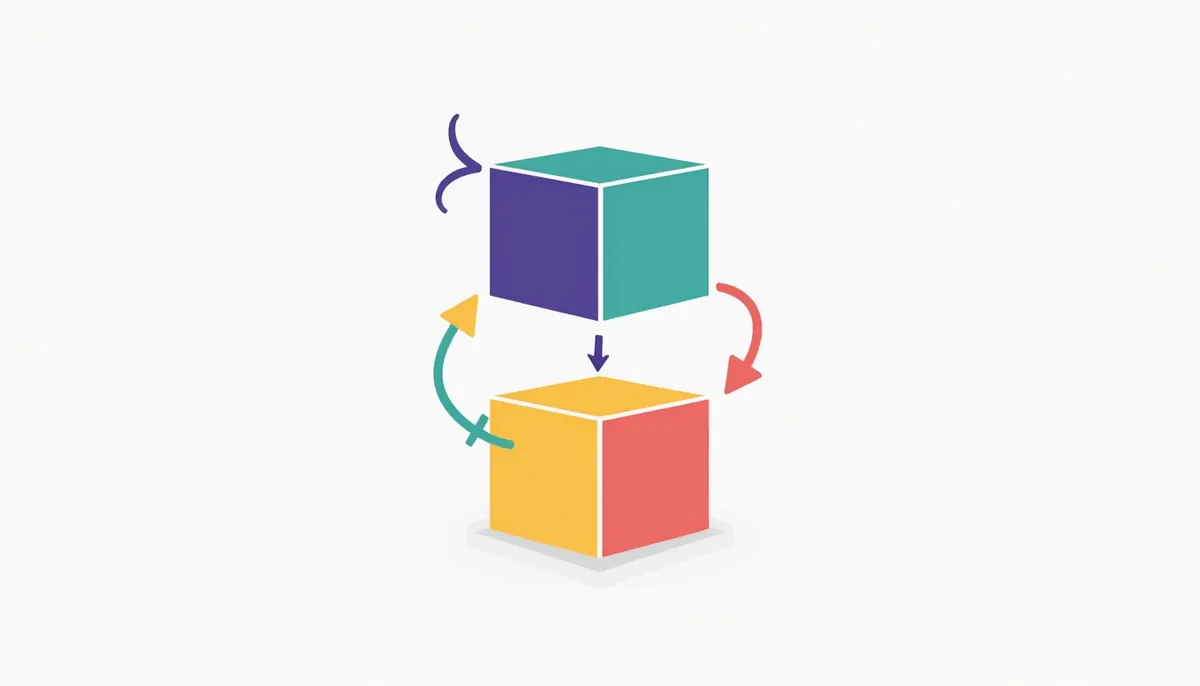
Two-way sounds better, but it can collide. If you change a phone number in the CRM while your accountant changes it in QuickBooks, one of them wins, and you may not know which. A simple rule avoids this. For each type of data, pick one system that owns it, then edit only there.
| Data | Suggested owner | Why |
|---|---|---|
| Lead and contact details | CRM | It is where you work with the person |
| Invoices and payments | Accounting tool | It is your financial record |
| Appointments | Calendar | It shows real availability |
| Reviews and feedback | Review tool | You do not want to edit them |
Write the owner list down. When something looks wrong in a month, you will know where to look first.
When a connector service makes sense
Tools like Zapier link apps that have no built-in connection. They run on “tasks,” and it helps to know what counts. Zapier says a task is any successful action that runs in Zapier. Trigger steps, filters and paths do not use tasks, and steps that fail do not count. The number of tasks you can use depends on your plan.
Here is a labeled hypothetical. A connector has three action steps: create a contact, add a tag, and send a text. It runs for 40 new leads in a month. That is 40 runs times 3 actions, or 120 tasks. Triggers are free, so they are not in the count.
Two cautions. First, a connector adds one more thing that can break. Someone needs to own it. Second, plan for the day a step fails and a lead sits unseen. Set an alert for failed runs.
If you need a custom link, many CRMs can start a workflow from a webhook. HubSpot lists webhook-based triggers next to filter, event and schedule triggers. That is the kind of job a developer handles once and documents.
How to test a new connection
Use one test record before you connect real data. Go through this list.
- Create a test contact with a fake name and your own email and phone.
- Trigger the connection by sending the form, creating the invoice or booking the time.
- Check every field. Did the name, phone, source and notes land in the right place?
- Repeat with the same email. Do you get a duplicate or an update?
- Edit in each system. Does the change travel the way you expect?
- Test the stop path. Does an unsubscribe or “stop” actually stop messages?
- Break it on purpose. Turn off one tool. Do you get an alert?
- Write down what you built. Note what connects to what, who owns it, and where the login lives.
- Delete the test data from every system.
What the time savings can look like (hypothetical)
This uses round numbers to show the method. It is not a result and not a promise.
Say a form-to-CRM link saves retyping 30 leads a month at 4 minutes each. That is 2 hours. Email logging saves 3 minutes on 60 customer emails, or 3 hours. Invoice sync saves 5 minutes on 24 invoices, or 2 hours. The total is 7 hours a month.
The U.S. Bureau of Labor Statistics reports that private employers spent $46.89 per hour worked on employee compensation in June 2026. That is an average and not your pay rate, so round it to $47. Seven hours at $47 is about $330 a month of time.
Compare that with the tools, setup and upkeep you add. If the gap is small, start with free built-in links. Use your own hours and your own pay, and count the time you spend fixing mistakes.
Common mistakes
- Connecting everything at once. When something breaks, you will not know which link caused it.
- Skipping the duplicate test. Duplicates grow quietly.
- Choosing two-way sync by default. Pick an owner for each type of data first.
- Ignoring plan limits. A feature on the sales page may need a higher plan.
- Connecting a shared inbox that is not supported. Check before you buy.
- No alert for failures. A broken form connection can run for weeks before anyone notices.
- No notes. The person who built it leaves, and nobody knows how it works.
Frequently asked questions
What CRM integrations should a small business set up first?
Start with the places leads come from: your website form, calls and chat. Then connect email and calendar, texting, and accounting.
Do I need Zapier to connect my CRM?
Not always. Many CRMs connect to email, calendar and accounting tools on their own. Use a connector only when there is no built-in option.
What is the difference between one-way and two-way sync?
One-way copies data from one tool to another. Two-way copies both ways, so edits in either place show up in the other. Two-way can create conflicts unless one system owns each field.
How do I avoid duplicate contacts?
Use email or phone as the matching field, test with the same details twice, and clean your list before you connect it. Back up before you merge records in bulk.
Is it safe to connect my email to a CRM?
It can be, if you read the permissions and connect the right inbox. For example, HubSpot says tracked emails are visible to other users in your account. Do not connect a private inbox to a shared CRM.
How long does it take to set up an integration?
A simple form or inbox connection is often quick to build, but give it a few days of testing. Accounting links and custom work take longer. Plan time for testing, not only building.
Who should own the integrations in my business?
One named person. They keep the notes, watch the alerts and decide what to connect next.
Next steps
Pick the one missing link that costs you the most today, probably your website form or your inbox. Connect it, test it with one record, and use it for a week before you add the next. If you want help building a clean setup, book your strategy call and we will look at how your tools connect today. You can also see how our AI marketing automation service fits in, or read how a CRM can automate your sales pipeline stages.
Related guides
- AI Marketing Automation for Small Business: The Complete Guide
- CRM Automation for Small Business: Where AI Helps and Where It Doesn’t
- How to Automate Your Sales Pipeline in a CRM
- What Does CRM Automation Cost? What Drives the Price
How many leads are you losing?
Try our free Lead Leak Calculator to see what missed calls and slow follow-up cost your business each month. Then see how our AI marketing automation follows up on every lead for you, or call (888) 849-2397 for a free lead review.
Part of our guide: AI Marketing Automation for Small Business: The Complete Guide.