Website maintenance for small business is the routine work that keeps your site safe, working and correct after launch. It comes down to five jobs: update the software, keep backups you can restore, renew the things that expire, check that forms and pages still work, and keep your facts current. Do a quick check each week, a deeper one each month, and a review each quarter and each year. Most important of all, put one named person in charge of each job.
The short answer
Weekly: open your site, test your contact form, and check for alerts. Monthly: run updates after a fresh backup, then test again. Quarterly: test a restore, review users and plugins, and check speed and search reports. Yearly: confirm renewal dates, review every page, and decide what to fix or rebuild. Write down who owns each task.
This guide covers what maintenance includes, who should own each part, a full routine with checklists, how to update and back up safely, what to do if the site breaks, and how to decide between doing it yourself and hiring help. It is written for owners of small service business sites, like the shops, trades and offices across Carlisle and Central PA.
In this guide
- What website maintenance for small business really means
- Why it matters: what goes wrong when nobody owns it
- Who owns what: the responsibility map
- WordPress vs hosted builders: what changes
- The maintenance routine: weekly, monthly, quarterly, yearly
- How to run updates without breaking your site
- Backups you can actually restore
- Security basics that cover most of the risk
- Renewals: the quiet way sites go dark
- Speed, mobile and search health
- Content, accessibility and email upkeep
- If your site breaks: the first hour
- DIY, hire help, or split the work?
- What to ask before you hire someone for maintenance
- Common website maintenance mistakes
- Notes for Carlisle and Central PA businesses
- What to do first, this week
- Website maintenance FAQ
- Free tools to use alongside this guide
What website maintenance for small business really means
A website is not a printed brochure. It is software running on a computer you rent. That software gets updates. The things around it expire. The facts on it go out of date. Maintenance is the habit of looking after all of that before a customer notices a problem.
Maintenance is not a redesign. A redesign changes how the site looks and how it is built. Maintenance keeps the site you have healthy. If your site is old, slow and hard to edit, maintenance can only do so much. Our guide to refresh, redesign or rebuild helps you tell the difference.
The five layers you are looking after

It helps to see a website as five layers. Each one breaks in its own way.
- Domain and DNS. Your web address and the settings that point it, and your email, to the right place.
- Hosting. The server your site lives on, including its PHP version and its security certificate.
- Software. The content system, such as WordPress, plus its theme and plugins. On a hosted builder like Wix or Squarespace, the platform runs this layer for you.
- Content. Your pages, photos, prices, hours, staff and service areas.
- Connections. Forms, booking tools, analytics, ad tracking, maps and anything that sends you leads.
When people say “my website broke,” the cause is almost always in one of these layers. A good routine touches all five.
Why it matters: what goes wrong when nobody owns it
Most small business sites do not fail in a dramatic way. They drift. A plugin falls behind. A form stops sending email. The domain card on file expires. Nobody notices for weeks, because nobody was assigned to look.
Here is what the data and the rules say about the main risks.
Plugins are where most new security holes show up. Patchstack, a WordPress security company, tracks reported flaws across the WordPress world. In its State of WordPress Security in 2026 report, it counted 11,334 new vulnerabilities in 2025. It found 91% of them in plugins and 9% in themes. Only 6 were in WordPress core, and those were low priority. The report also says 46% had no fix from the developer by the time they were made public. For the most targeted flaws, the weighted median time to the first attack attempt was 5 hours. That is Patchstack’s own data, but the lesson is plain: the add-ons you install carry most of the risk, and waiting months to update is not safe.
A hacked site can be flagged in Google. Google’s Security issues report help page explains that hacked content, malware and tricks aimed at visitors can lead to a warning label in search results or a warning page in the browser. A customer who sees that warning will rarely click through.
Expired things take the site down. If your domain lapses, the rules set by ICANN require the registrar to stop the domain from resolving for a period before it is deleted. In plain terms, your site and the email on that domain stop working until you renew. The same goes for an expired security certificate, which makes browsers show a “not secure” warning.
Silent failures cost leads. A contact form can look fine and still fail to send. A booking widget can lose its connection. Phone numbers get changed in one place but not another. None of these trigger an alarm. You only find them by testing.
Who owns what: the responsibility map
The FTC’s small business cybersecurity guidance on hiring a web host makes a simple point: decide early who will manage the site after it is built. Many problems trace back to a gap here. The owner thinks the host handles updates. The host thinks the designer does. The designer finished the project two years ago.
Use this table to fill in names. If a cell is blank on your copy, that task is not being done.
| Task | Usually the owner | Usually the host | Usually a developer or care plan | On a hosted builder |
|---|---|---|---|---|
| Domain renewal and DNS | Yes, the account should be in your name | Sometimes, if bought through the host | Can manage it for you | You, through the platform or registrar |
| Server, PHP version, certificate | No | Yes, check your plan | Checks it and asks the host to fix it | The platform |
| WordPress core, theme, plugins | Can approve updates | Some hosts auto-update core | Yes, with backups and testing | The platform runs core; you manage apps you add |
| Backups | Keeps one copy they control | Often takes daily server backups | Sets up and tests offsite backups | Check what the platform keeps and for how long |
| Forms, tracking, connections | Tests that leads arrive | No | Fixes and monitors | You |
| Content, hours, prices, photos | Yes | No | Can update on request | You |
| Logins and user accounts | Owns the admin account | Owns the hosting login | Has their own login, never yours | You |
Two rules make this table work. First, every account (domain, hosting, site admin, analytics) should be owned by the business, with others added as users. Second, write the names down. A one-page sheet is enough.
WordPress vs hosted builders: what changes
How much maintenance you face depends on the platform. WordPress gives you more control and more chores. Hosted builders take some chores away and limit what you can change.
| Job | WordPress | Wix, Squarespace and similar |
|---|---|---|
| Core software updates | Minor updates run on their own by default since version 3.7; new installs since 5.6 also get major updates | Run by the platform |
| Plugin and theme updates | Your job; auto-updates are optional, plugin by plugin, since 5.5 | Apps you add may need review |
| Server and PHP | Your host, but you should check it | The platform |
| Backups | You set them up and test them | Ask what the platform keeps and how restores work |
| Forms and connections | You test them | You test them |
| Content and accuracy | You | You |
The core update facts come from WordPress’s own guide to upgrading and automatic updates. Plugin and theme auto-updates arrived in version 5.5. WordPress runs them twice a day for anything you switch on and emails you after each attempt. That helps, but it does not test your forms afterward. Someone still needs to look.
If you are on a builder, do not skip this guide. Your list is shorter, not empty. Content, forms, domain, email and logins are still yours.
The maintenance routine: weekly, monthly, quarterly, yearly
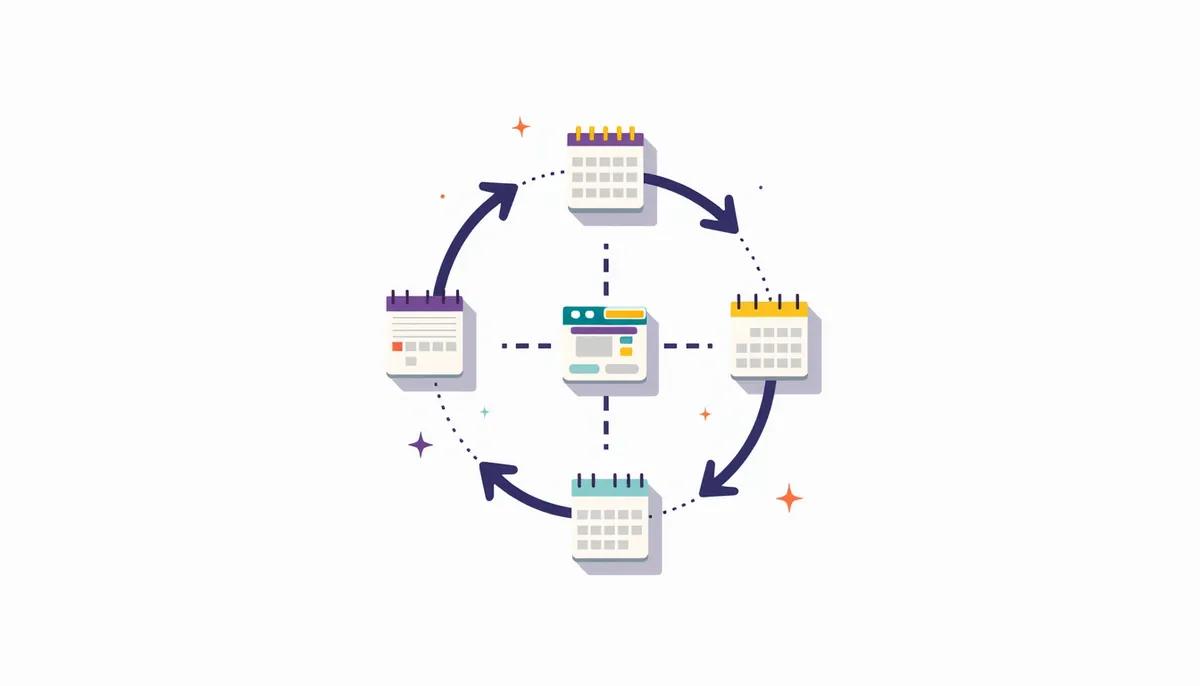
The best routine is one you will actually keep. Short, regular checks catch problems while they are small. The times below are planning estimates for a typical 5 to 30 page service business site. Larger sites, shops and sites with many plugins need more.
Every week (about 10 minutes)
- ☐ Open your home page and two key service pages on your phone. Do they load and look right?
- ☐ Send a test message through your main contact form. Did it arrive in the right inbox?
- ☐ Click your phone number on mobile. Does it start a call?
- ☐ Read any emails from your host, your site or Google Search Console. Act on warnings.
- ☐ Check that last week’s leads match what your form and phone records show.
Every month (about 30 to 60 minutes)
- ☐ Confirm a fresh backup exists before you change anything.
- ☐ Run WordPress, theme and plugin updates using the safe routine below.
- ☐ Test the contact form, booking tool and any quote form again after updates.
- ☐ Remove plugins you no longer use. Delete, do not just deactivate.
- ☐ Scan for broken links and fix or redirect them.
- ☐ Look at Search Console for new errors or security messages.
- ☐ Update anything that changed: hours, prices, services, staff, photos, offers.
Every quarter (about 1 to 2 hours)
- ☐ Do a test restore of a backup to a staging copy or a test location.
- ☐ Review user accounts. Remove old staff and vendors. Check who is an admin.
- ☐ Check speed and Core Web Vitals for your top pages.
- ☐ Review the Page indexing report in Search Console for pages that dropped out.
- ☐ Check your hosting PHP version against the supported list.
- ☐ Read your top five pages as a customer would. Is anything out of date or unclear?
- ☐ Confirm your Google Business Profile matches your site: name, phone, hours, services.
Every year (about half a day)
- ☐ Confirm renewal dates for domain, hosting, certificate and any paid plugins.
- ☐ Check that payment cards on those accounts are current.
- ☐ Review every page. Merge thin pages, update old ones, remove dead ones.
- ☐ Review your privacy policy, cookie notice and accessibility basics.
- ☐ Check email authentication records (SPF, DKIM, DMARC) with your email provider.
- ☐ Decide: keep maintaining as is, refresh, or plan a redesign.
A hypothetical time budget
This is a worked example, not a measurement. It shows why a routine is cheaper than a rescue. The numbers are round on purpose.
| Rhythm | Time each | Times a year | Hours a year |
|---|---|---|---|
| Weekly | 10 minutes | 52 | about 9 |
| Monthly | 45 minutes | 12 | 9 |
| Quarterly | 2 hours | 4 | 8 |
| Yearly | 4 hours | 1 | 4 |
| Total | about 30 |
So in this example, steady upkeep takes about 30 hours a year, or a little over half an hour a week. Spread out, that is manageable for many owners. The real question is whether you will do it every week without fail. If not, hand it to someone who will.
For a printable after-launch version of this list, see our website maintenance checklist for after your site launches.
How to run updates without breaking your site
Updates fix security holes and bugs. They can also clash with a theme or another plugin. WordPress itself says to back up first and to “verify the backups you created are there and usable.” Here is a simple order that keeps risk low.
The safe update routine
- 1Take a fresh backup of files and database, and confirm it finished.
- 2Read what is being updated. Note any major version jumps.
- 3If you have a staging copy, update there first and click through the key pages.
- 4Update on the live site at a quiet time, not right before a busy weekend.
- 5Update plugins one at a time when a change looks big, so you know which one caused trouble.
- 6Test the home page, a service page, the contact form and checkout or booking.
- 7Write a one-line note in your site log: date, what changed, any issues.
If something breaks after an update, roll back that one plugin or restore the backup you just took. Then ask the plugin maker or your developer before trying again. Do not leave a site half broken while you wait.
A note on auto-updates. They are a good choice for low-risk plugins and for security releases. They are a riskier choice for big plugins that run forms, stores or page layouts. Many owners switch on auto-updates for simple plugins and update the big ones by hand each month.
Backups you can actually restore
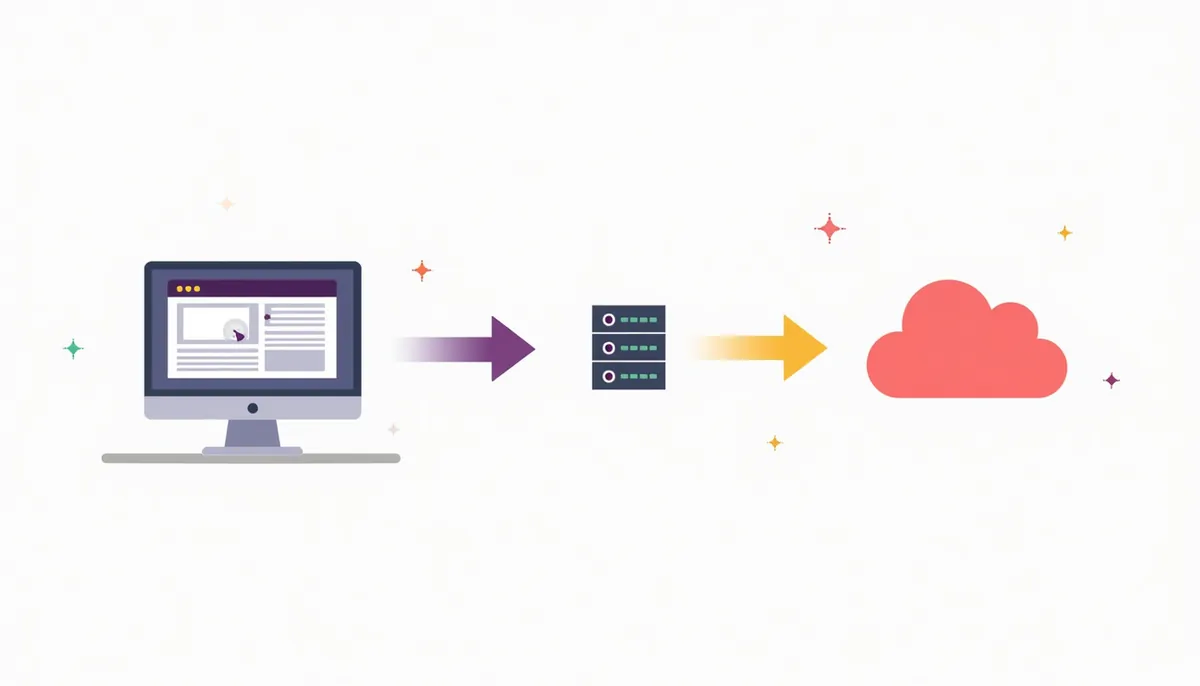
A backup you have never restored is a hope, not a plan. Some owners learn their host’s backups only go back a few days, or that a restore costs extra, on the day they need one.
The US Cybersecurity and Infrastructure Security Agency (CISA) describes the 3-2-1 backup rule. Keep 3 copies of important data: the original and 2 backups. Keep them on 2 different types of storage. Keep 1 copy offsite. For a website, that might look like this:
- Copy one is the live site on your host.
- Copy two is the host’s own daily backup.
- Copy three is a separate backup sent to storage you control, such as a cloud storage account in the business’s name.
How to test a restore
- Pick a recent backup from your offsite copy, not the host’s.
- Restore it to a staging site or a test folder, never over the live site.
- Open the restored site. Check the home page, a few inner pages, images and the contact form.
- Log in to the admin area and confirm recent posts and settings are there.
- Write down how long it took and any steps that were hard. That is your recovery plan.
Do this once a quarter. It takes an hour or so the first time and less after that.
What to back up
Back up both the files (theme, plugins, uploads) and the database (pages, posts, settings, form entries). Many free tools only save one of the two by default. Also keep a copy of anything that lives outside the site: your logo files, brand photos, and a list of your logins in a password manager.
Security basics that cover most of the risk

You do not need to become a security expert. The FTC’s cybersecurity basics for small businesses cover the core habits: set a schedule for updates and turn on automatic updates, back up important files regularly, and require multi-factor authentication. For a website, that turns into a short list.
- ☐ Keep core, theme and plugins up to date on a fixed schedule.
- ☐ Turn on two-step login (multi-factor authentication) for every admin account.
- ☐ Give each person their own login. Never share one admin password.
- ☐ Use the lowest role that lets each person do their job. Editors do not need admin.
- ☐ Remove plugins and themes you do not use. Fewer add-ons means fewer holes.
- ☐ Only install plugins that are still updated by their makers.
- ☐ Keep the site on HTTPS. Your address should start with https:// on every page.
- ☐ Store passwords in a password manager owned by the business.
Given that plugins carry most reported flaws, the single best habit is to keep fewer of them and keep the rest current. If a plugin has not been updated in a long time, look for a replacement.
Renewals: the quiet way sites go dark
Renewals are the most boring part of maintenance and one of the most common causes of a site going offline. They are also the easiest to fix with a calendar.
| What expires | What happens | What the rules say | What to do |
|---|---|---|---|
| Domain name | Site and domain email stop working | ICANN requires at least two reminders, about one month and about one week before expiry, and one within five days after. The registrar must interrupt the domain before deletion. | Turn on auto-renew. Keep the card current. Make sure reminders go to an inbox someone reads. |
| Security certificate (SSL/TLS) | Browsers warn “not secure” | Let’s Encrypt certificates last 90 days, and Let’s Encrypt suggests renewing every 60 days. | Confirm your host renews automatically. Check the padlock each month. |
| Hosting plan | Site goes offline | Set by your host’s terms | Auto-renew, current card, and know where your backups live. |
| PHP version on the server | Old versions stop getting security fixes | PHP.net lists support dates. PHP 8.2 gets security fixes until 31 Dec 2026. | Ask your host which version you run. Plan upgrades with testing. |
| Paid plugin or theme licenses | Updates stop | Set by each vendor | List them with dates. Renew or replace. |
Sources: the ICANN Expired Registration Recovery Policy, the Let’s Encrypt FAQ, and the supported versions page on PHP.net.
A common renewal problem is not the rule. It is the inbox. The domain was registered years ago with an old email address, so the reminders went nowhere. Log in to your registrar today and check the contact email.
Speed, mobile and search health
A slow or broken site costs you visits and leads. Google’s guide to Core Web Vitals sets three targets for a good experience:
- Largest Contentful Paint (LCP): the main content should load within 2.5 seconds.
- Interaction to Next Paint (INP): the page should respond to taps and clicks in less than 200 milliseconds.
- Cumulative Layout Shift (CLS): the layout should stay steady, with a score under 0.1.
Google says it highly recommends site owners achieve good Core Web Vitals for success with Search. That is not a promise of rankings. It is a sign that speed is worth watching.
What to do in practice:
- Check your top pages each quarter with PageSpeed Insights or the Core Web Vitals report in Search Console.
- Resize photos before you upload them. Big phone photos are a common cause of slow pages.
- Remove sliders, popups and scripts you no longer need.
- If you run WordPress, our 10-step checklist to speed up WordPress walks through caching and image fixes.
- If you run ads, also read landing page speed and mobile checks before ads.
For search health, open the Page indexing report in Search Console each quarter. It shows which pages Google can find and index. If key pages drop out, find out why before it turns into lost calls.
Content, accessibility and email upkeep
Keep your facts current
Wrong hours, old prices and staff who left years ago make a business look closed or careless. Keep a short list of facts that appear on your site and update them in one sitting: phone, address, hours, service area, services, prices if you publish them, team, licenses and insurance details. Then make sure your Google Business Profile matches. Our Google Business Profile checklist covers that side.
Keep the site usable for everyone
The US Department of Justice says the ADA applies to the goods and services of businesses open to the public, “including those offered on the web.” It does not set a detailed technical standard, and it points to existing standards like WCAG as helpful guidance. The current version, WCAG 2.2, is a W3C Recommendation. You do not need to master it to do the basics during maintenance:
- Add useful alt text to new images.
- Keep text readable, with enough contrast against the background.
- Make sure forms have clear labels and can be used with a keyboard.
- Use real headings in order, not just bold text.
- Caption videos you upload.
This is general information, not legal advice. If you have a specific accessibility concern, talk to a qualified professional.
Keep your email landing in inboxes
Website forms often send email from your domain. Since February 1, 2024, Google requires every sender to Gmail accounts to set up SPF or DKIM, and bulk senders of more than 5,000 messages a day to set up SPF, DKIM and DMARC. That comes from Google’s email sender guidelines. If your form emails or invoices suddenly land in spam, check these records with your email provider. It is a common cause of “we never got the lead.”
If your site breaks: the first hour
Problems feel urgent because they are. A calm order of steps saves time.
- Confirm it is really down. Try another device and network. Ask someone else to check.
- Check the obvious. Did the domain, hosting or certificate just expire? Did someone just run an update?
- Check for messages. Look at email from your host, WordPress and Search Console. A hack or a billing hold often shows up there first.
- Contact your host. Ask if the server is having an issue and what they see in the logs.
- Roll back the last change. If an update caused it, restore the backup taken just before.
- If you suspect a hack, change all passwords, remove unknown admin users, and get a cleanup done before you restore. Then request a review in Search Console if Google flagged the site.
- Write it down. Note what happened and how you fixed it. Add any missing step to your routine.
Keep your host’s support contact, your registrar login and your backup location on one page that more than one person can find.
DIY, hire help, or split the work?

There is no single right answer. It depends on your site, your time and how much a day of downtime would cost you. Use this table as a starting point.
| Your situation | Good fit | Why |
|---|---|---|
| Simple builder site, few changes, owner likes tech | Do it yourself | The platform handles the server and core. Your list is mostly content and testing. |
| WordPress site with a handful of plugins, owner has a free hour a week | Split it | You handle content and weekly checks. A pro handles updates, backups and fixes. |
| WordPress site with forms, booking, ads or a store | Hire help | More moving parts, more ways for leads to break silently. |
| Site brings in most of your new customers | Hire help | A day offline costs more than the upkeep. |
| No one on staff will check it every week | Hire help | A routine that does not happen is the most expensive kind. |
| Site is old, slow and hard to edit | Plan a rebuild | Upkeep cannot fix a weak foundation. See our website redesign guide. |
Splitting the work is underrated. Owners know their business facts better than any vendor. A pro is faster at updates, backups and fixes. Agree on who does what, and use the responsibility map above.
What to ask before you hire someone for maintenance
Whether you hire a freelancer, an agency or your host, ask these questions before you sign. Good providers answer them plainly.
- ☐ What exactly is included each month, in writing?
- ☐ How often do you run updates, and do you test the site after?
- ☐ Where are backups stored, how long are they kept, and when did you last test a restore?
- ☐ What happens if an update breaks the site? Who fixes it, and how fast?
- ☐ Do you test forms and lead tracking, or only the software?
- ☐ Will all accounts stay in my business’s name?
- ☐ What do you report to me each month?
- ☐ If I leave, what do I get back, and how?
- ☐ Are content changes included, or billed separately?
Watch for vague answers on backups and restores. That is where the real value of a care plan sits. Also be careful with anyone who promises your rankings will rise because of maintenance. Maintenance protects what you have. It does not replace SEO or marketing.
Common website maintenance mistakes
- Assuming the host does it all. Most hosts keep the server running. Few test your forms or update your plugins with care.
- Updating without a backup. It works fine until the one time it does not.
- Never testing a restore. The backup may be incomplete, too old or stored on the same server that failed.
- Keeping old plugins “just in case.” Each one is another thing to update and another way in.
- Sharing one admin login. You cannot remove one person’s access without locking out everyone.
- Accounts in a vendor’s name. If the relationship ends, you may lose your domain or hosting.
- Renewal emails going to an old inbox. The most avoidable outage there is.
- Only checking the home page. Leads come through forms, booking tools and phone links. Test those.
- Letting facts drift. Old hours and prices quietly send customers elsewhere.
- Treating maintenance as a fix for a weak site. If the site does not bring leads, upkeep keeps it running but will not change results.
Notes for Carlisle and Central PA businesses
A few local habits are worth adding to your routine.
- Holiday and seasonal hours. Google’s own help says it is a good idea to confirm your hours for official holidays, even if they match your regular hours. Update your site and your Google Business Profile special hours at the same time.
- Winter weather. Snow days and closures are common here. Decide in advance where you will post a closure notice: a banner on the site, your profile, or both.
- Busy seasons. Many trades and seasonal shops are busiest in spring and summer. Do bigger updates and any rebuild work in your slow months, not in the middle of the rush.
If you want to see how local sites compare, our Central PA small business website report is a good reference point.
What to do first, this week
If this feels like a lot, start here. These five steps take about an hour in total and close the biggest gaps.
- Log in to your domain registrar. Check the expiry date, auto-renew and the contact email.
- Send a test message through your contact form and confirm it arrives.
- Find out where your backups are and how far back they go. Ask your host if you are not sure.
- Turn on two-step login for your site admin and hosting accounts.
- Write a one-page sheet with every account, who owns it and who maintains it.
Then pick a day each week and each month for the routine above, and put it on your calendar.
Website maintenance FAQ
How often should a small business website be maintained?
Check it briefly every week, run updates and content changes every month, and do deeper checks each quarter and each year. Security updates should not wait for a quarterly review. Patchstack’s 2026 report found that heavily targeted flaws can see attacks within hours of being made public.
What does website maintenance include?
Software updates, backups and restore tests, renewals, security basics, speed and search checks, form and lead testing, and keeping your content accurate. On a hosted builder, the platform handles the server and core software, but the rest is still yours.
Can I do website maintenance myself?
Yes, if your site is simple and you will stick to a weekly routine. Many owners handle content and weekly checks themselves and hire help for updates, backups and fixes. Use the decision table above to choose.
Do Wix or Squarespace sites need maintenance?
Yes, but less. The platform runs the server and core software. You still own your content, forms, connected apps, domain, email records and logins. Check your platform’s help pages for what it backs up and how restores work.
What happens if I stop maintaining my website?
Usually nothing at first. Over time, plugins fall behind, forms can stop working, facts go stale and renewals can lapse. The risk builds quietly until something fails, often at a bad time.
Should I turn on automatic updates in WordPress?
For minor core updates, WordPress already does this by default. For plugins, auto-updates are a good fit for simple, low-risk ones. For big plugins that run forms, stores or layouts, many owners prefer to update by hand after a backup and test right after.
Does website maintenance help SEO?
It protects the basics that search depends on: a site that loads, works on phones, stays secure and keeps pages indexed. It does not replace SEO work like content and local signals, and nobody can promise rankings from upkeep alone.
Free tools to use alongside this guide
- Website teardown: a quick outside look at what your site gets right and wrong.
- Central PA small business website report: see how local sites compare.
- Website cost estimator: plan the scope if maintenance shows you need a rebuild.
If you would rather hand the routine to a team, see our website maintenance services. We are a digital marketing agency in Carlisle, PA.
Related guides
- Website Maintenance Checklist: What to Do After Your Site Launches
- How to Speed Up WordPress: A 10-Step Checklist
- Landing Page Speed and Mobile: 12-Point Check Before Ads
- After a Website Redesign: What to Monitor for the First 90 Days
- Google Business Profile Checklist for Local Businesses
- Small Business Web Design: The Complete Guide
- Website Refresh vs Redesign vs Rebuild: Which Does Your Site Need?
- Website Maintenance Services
Book your strategy call
Not sure who is looking after your site right now? Webfactory Media is a digital marketing agency in Carlisle, PA. Tell us how your site is built and who touches it, and we will walk through what to fix first and what can wait. Book your strategy call. You can also see our website maintenance services.